01 · Put a connection to work
Connect a tool. Try one task.
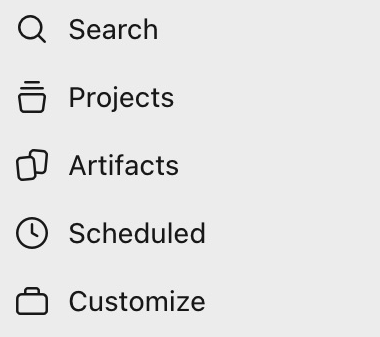
- Open Customize or Plugins. In Customize, choose Connectors → Discover. In Plugins, filter for connectors.
- Connect your account. Open its listing, choose Connect or Install, and sign in.
- Try a clear request. Name the tool, the information, and the result you want.
Claude is rolling out a unified Plugins page. See the current navigation →
02 · Know the pieces
Three building blocks.
Skill
A prewritten prompt.Saved instructions for a task like contract review. Update it as you learn what works.
Connector
Access your apps.Lets Claude read and write in a tool like Outlook. Each one lists exactly what it can do.
Plugin
Skills, connections, or both.A package of capabilities you can add to Claude.
03 · Start with your daily tools
Connect these first.
- EmailOutlook · Gmail
“Build a timeline of every email from opposing counsel.”
- FilesOneDrive · SharePoint · Google Drive · Dropbox · Box
“Find the latest signed Acme MSA and summarize its termination terms.”
- CalendarOutlook · Google Calendar
“List my hearings and deadlines for the next two weeks.”
- Case lawCourtListener · CoCounsel
“Find California opinions on this issue and quote the relevant passages.”
04 · A connection you can put to work
Connect Gmail or Outlook to Claude.
Start with the email your practice already uses. Connect it, find one email you can check, then build a matter timeline.
Look for Plugins in the sidebar. During the rollout, some accounts still use Customize → Connectors; the steps below cover that layout too.
1. Connect Gmail.
Use the Google account you use for Gmail. This connector is available to all Claude users. On Claude Team or Enterprise, an owner must enable it first.
Plugins / CustomizeGmail
- Find Gmail in Claude’s connector directory. Choose Connect or Install, then sign in to the right Google account.
- Review the access request. Gmail supports sending and changing email as well as searching. Keep approval required for actions that change or send messages.
- In a new chat, use the + menu to enable Gmail under Plugins or Connectors. See Anthropic’s connection steps.
If your Google Workspace organization blocks the connection, ask its administrator to review it. Gmail provides attachment details, not attachment contents. Gmail capabilities and troubleshooting →
Gmail connected? Check one email →1. Connect Outlook through Microsoft 365.
Before you start
You need a Microsoft 365 work account backed by a Microsoft Entra tenant and business plan. Personal Outlook.com, Hotmail, and Live accounts are not supported. The connector is available on all Claude plans.
A Microsoft administrator must approve the connection for your organization. On Claude Team or Enterprise, an organization owner must also enable it. Send your administrator the setup instructions →
Plugins / CustomizeMicrosoft 365Connect
- In Claude, follow that path and sign in with your work Microsoft account. If you see an administrator-approval request, pause and ask your administrator.
- Review the requested access. This connector can reach more than Outlook. For this exercise, use search and read tools; optional write tools are not needed. Check Tool permissions on the connector’s page.
- Open a new chat. Use the + menu to enable Microsoft 365 under Plugins or Connectors if it is disabled. See Anthropic’s connection steps.
For either provider, a matter name or date range guides the search; it does not narrow the permissions granted to the connector.
2. Check one ordinary email.
Choose an existing non-client email in Gmail or Outlook. In the prompts below, replace [Gmail or Microsoft 365] with the connector you chose, then fill in the other fields.
Use the [Gmail or Microsoft 365] connector to find the non-client email with subject [exact subject], from [sender], dated [date].

Return its subject, sender, timestamp, and one sentence describing it. Include a link if available; otherwise give enough identifying information for me to open the original email. If you cannot find it, say so. Do not substitute another message.

Search and read only. Do not send, draft, move, delete, or otherwise change anything.
Pass check: Open the original in Gmail or Outlook. The sender, subject, date, and summary should match. If they do not, resolve that before using client material.
3. Build a timeline you can verify.
Choose a matter your firm permits in Claude. Start with a short date range.
Using the [Gmail or Microsoft 365] connector, build an email timeline for [matter], covering [date range] and correspondence with [names or email addresses]. Focus on [issue].

Return a table with event date, what the email establishes, uncertainty, and source. Identify each source by sender, subject, timestamp, and a link when available. Distinguish the date an email was sent from the date of the event it describes. Separate planned dates from confirmed events.

Preserve conflicting accounts. Flag gaps and missing attachments; do not fill them in or claim the search found every relevant email. End with what I should check next.

Search and read only. Do not change the mailbox or send anything.
What to check in the result
Fictional example: An October 6 email says, “We expect delivery on October 9.” Record that expectation—not delivery on October 9. Open each cited email and check what it actually establishes.
See the two-email worked example →If the connection or search does not work
- Wrong account or approval required
- Check which Google or Microsoft account you connected. For Outlook, use an approved work account. If either provider shows an administrator block, ask your organization’s administrator to review it.
- Connected, but nothing is found
- Check that the connector you chose is enabled in this chat. Try one known sender, exact subject, and date. Open the message in your email app to confirm where it lives.
- Older Outlook emails are missing
- The primary mailbox’s Archive folder is searchable; the separate Online Archive mailbox is not. A search result is not proof that you have the complete record.
To disconnect, open Plugins (or Customize → Connectors), open Gmail or Microsoft 365, and choose Disconnect.
Instructions checked against Anthropic’s Google Workspace guide, connector setup guide, Microsoft 365 user guide, administrator guide, and connector listing on November 3, 2026. Account controls can change. This walkthrough expands the v2 one-page Connections Guide with detailed email setup steps.
05 · Give a complete assignment
Prompting connectors.
Say what you want and where to find it.
Combine them
“Search my email and MyCase, update me on the John Doe case, and draft a client update.”
For a clearer assignment, use the five-part prompting framework.
06 · Keep what works
Teach a repeatable task.
A skill is a saved set of instructions: a prewritten prompt you can refine.
“Based on my feedback in this conversation, update the skill.”
To save a workflow that already works, ask Claude to create a skill from it. Invoke it using + or / where available. Use your own editable skill and review saved changes.
07 · Review the work
Links, approval, and client data.
Ask for links.
Link every email and file you relied on.
Then spot-check them.
Approve each action.
Choose Allow once for anything that sends, signs, or deletes.
Protect client data.
In the guide’s settings: Settings → Privacy → “Help improve Claude”, toggle off.
Connections and controls depend on your account and can change. Confirm available permissions and your firm’s requirements before connecting client materials.