Put a reviewed example to work
Typing the same prompt repeatedly?
A skill is a prewritten prompt you can update over time. Start with a deposition summary you have checked and improved.
Create it from a result you like.
Turn this workflow into a skill named deposition-summary. Package it as a ZIP.
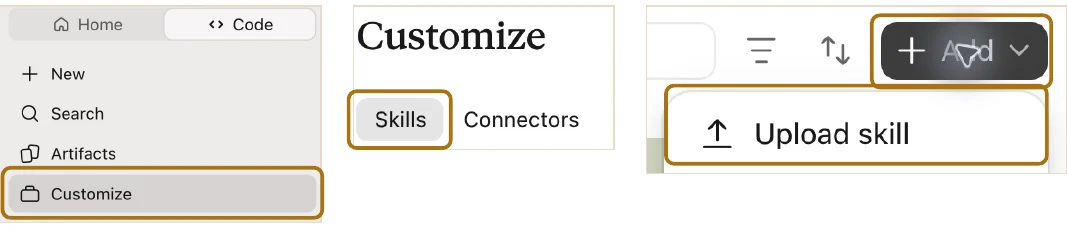
Add it in Claude.
Open Customize → Skills → Add → Upload skill. Select the ZIP and enable the skill. Claude’s skills instructions →
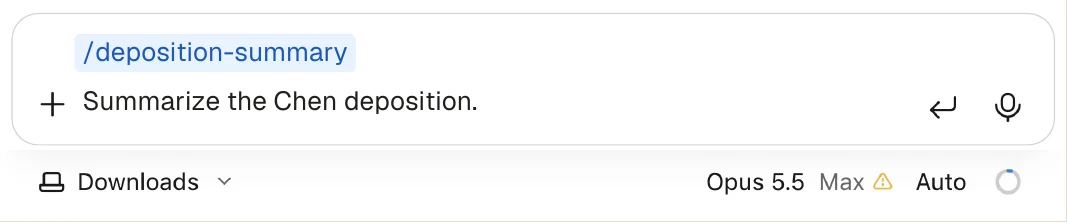
Use it for the next deposition.
/deposition-summary Summarize the Chen deposition.
Revise the summary, then update the skill.
Review the output and tell Claude what to improve. Once you like the revision:
Update this skill’s instructions using my feedback in this chat so the next summary is right the first time.
Save the revised instructions in Customize → Skills. Check the sources each time you use it.
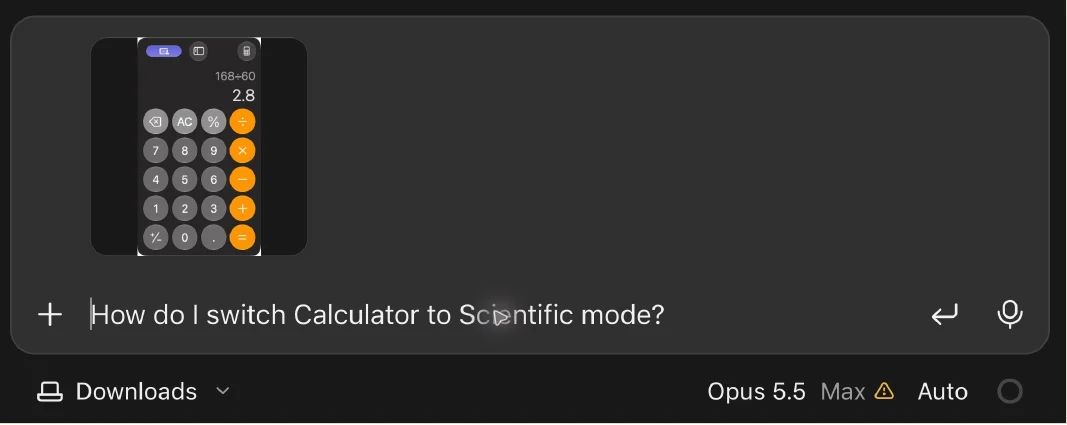
Ask for help with a screenshot.
Capture the window you need help with, paste it into Claude, and ask your question.
On a Mac
- Press Shift + Command + 5.
- Choose Capture Selected Window and set Options → Clipboard.
- Click the window. Paste into Code with Command + V.
Choose the right workspace
Home or Code?

- Home
- Start here for research, writing, and work across connected apps. Get a draft, answer, or report; pick up on your phone or browser.
- Code
- Use a local session to find, create, or edit documents on your computer. Code also supports scripts and software work. Review the changes as you go.
01 · Use your files
Work with a folder.
In Claude Desktop, choose Code → New → Choose environment → This computer. Select the matter folder you want Claude to use and approve the relevant access. Keep the computer awake and Desktop open.
Try it with a matter folder
“Use this matter folder to build a dated chronology. Cite the source file and page for each event.”
Read the plan. Correct it early. Keep Desktop open for local-file access.
Keep working with the laptop shut
Use connected apps or uploaded files in Home. For a Code project, choose Cloud when starting the session. A cloud task can run with your computer off.
To steer Code Local from your phone or browser, use Remote Control while the computer stays awake and online.
Some accounts still use the Cowork selector. Anthropic’s folder and project instructions →
02 · Repeat useful work
Schedule a proven workflow.
Describe the task and cadence. Review the proposed instructions, then click Schedule.
Try a weekly matter update
“Every Friday, draft a status summary from this matter’s new emails and documents. Link the sources.”
Cloud tasks can run while your computer sleeps. For local files, keep the computer awake and Claude Desktop open.
In the older Cowork interface, start at Scheduled → New task → Create with Claude. Anthropic’s scheduling instructions →
03 · Choose the right control
Speed or parallel work?
- Fast mode
Faster Opus responses using paid credits immediately. In Code on the web: model menu → Fast mode.
Fast mode and its usage cost →- Ultracode
Turn on in Claude Code’s effort controls for work that benefits from parallel attempts. It can use much more allowance.
Ultracode controls and workflows →
Afterwards
Turn Fast mode and Ultracode off; return to Opus 5.5 · Max.
04 · Know what is left
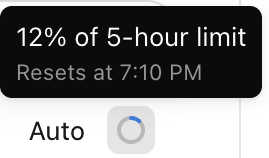
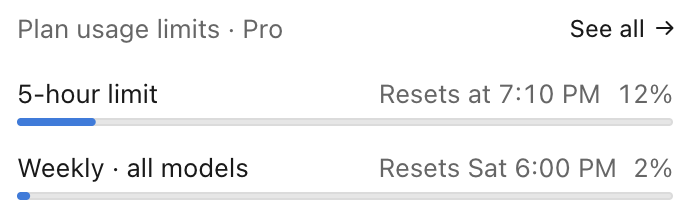
Check usage and reset time.
- Open Settings → Usage.
- Read Current session, Weekly limits, and their reset times. Compare time left with allowance left.
05 · Keep going
Out of usage? Three options.
Fund usage credits
Enable credits in Usage. Set a spending cap; auto-reload is optional. Manage usage credits.
Upgrade your plan
Choose a higher plan if you need more ongoing capacity.
Wait for the reset
Resume at the reset time shown in Usage.
One shared allowance
Home and Code share plan limits. Switching tabs does not refill your allowance.