Connect the sources you actually use.
In ChatGPT Work, open Plugins in the sidebar. Find the service, choose Install or Connect, sign in to the intended work account, and review the requested access. Start a new chat and use @ to select the connected plugin when needed.
Availability depends on your plan, workspace settings, and the integration. Your administrator may need to approve it. In Chat, connections may appear under Apps; use the instructions for the surface you are working in.
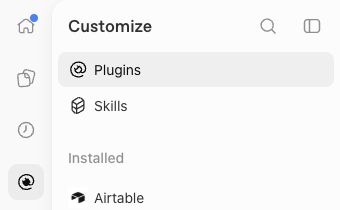
Start with Outlook or Gmail.
Use the email system your practice already runs. Enterprise organizations often use Microsoft 365; small businesses often use Google Workspace. Your actual accounts determine the connection.
Microsoft 365 / Outlook
- Open Plugins and find the available Outlook or Microsoft email integration.
- Sign in to your work Microsoft account. Check the organization shown before granting access.
- If administrator consent is required, ask the workspace administrator to approve the integration. A paid AI plan alone does not grant mailbox permissions.
- Return to Work, select the installed plugin, and test a narrow search of a known email you are permitted to use.
Google Workspace / Gmail
- Open Plugins and find Gmail. Choose Install or Connect.
- Sign in to the Google account that holds the work emails. Review the requested access.
- Complete any required Google Workspace administrator approval.
- Start a new task with the Gmail plugin and ask for a known email by sender, subject, and date.
If a service is unavailable, use an approved export or upload for the pilot. Do not assume one email connection also grants calendar or file access.
Ask for a result with source links.
Try a matter briefing
Find the emails about [matter] from [date range]. Summarize the latest positions, list unresolved questions, and link the email behind each point. Use only the selected mailbox. Draft a briefing for my review; do not send messages.
Check at least one known result against the mailbox. Confirm sender, date, content, and source links. Then add approved file or calendar connections if the workflow needs them.
For case-law work, use an available authorized research connection, such as CourtListener or your licensed legal research tools. Check that it supplies the sources you need.
Save the process after it works.
Ask: “Save this matter-briefing workflow as a skill. Include the source checks and keep delivery as a draft for my review.” Review the instructions before reusing them.
On the next assignment, invoke the saved skill and supply the matter and date range. When you improve the process, ask ChatGPT to update the skill and review the change.